
Lots of people use Gmail. I am one of them. Many people like to use it in it’s native online form. I am not one of them. I need my folders and subfolders. Labels don’t fool me into thinking I have actual folders. And I don’t believe everything belongs in a conversation. And I need my menus full of commands. So I while I do use Gmail, I use it though the email client Thunderbird.
There is one thing that I do like about using Gmail online. It’s Canned Responses. A canned response is, in short, a response that you use over and over again. You can have numerous canned responses, enabling you to have different responses to different questions. There are different ways to use them and set them up. In Gmail make one click and the reply of your choice is inserted into an email. Sadly for folks like me, Gmail online is the only place you can use Canned Responses. If you’re like me and use Thunderbird and love the idea of Canned Responses, I can tell you about a Thunderbird extension that will help you tremendously. It’s called Clippings.

Clippings saves frequently-used text that you use again. For a long time I kept emails in draft and when I wanted certain text I’d have to go into drafts, select the text I wanted, copy it and then paste it where I wanted to use it. It was a tiny bit shorter then just typing everything out (most of the time) but it was still a process. There were also times I just searched for a previous sent email where I knew I’d used the text I wanted, and then copied and pasted that. Also not fast or convenient. Two clicks sounds much simpler then all that, doesn’t it?
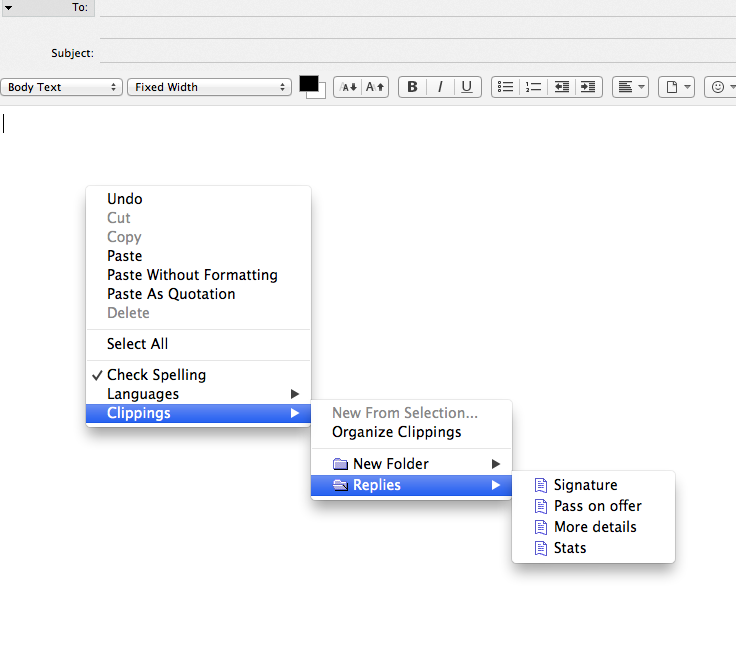
Clippings can be used for email replies, newsgroups, and even web forms in Firefox. Clippings with HTML tags can even be pasted as rich text! Some of the many possible uses for Clippings include:
- Replying to a pitch
- Using a Clipping as framework for making a pitch
- Sending someone your shipping address
- Sending someone your stats
- Sending a “form” email to a group or mailing list
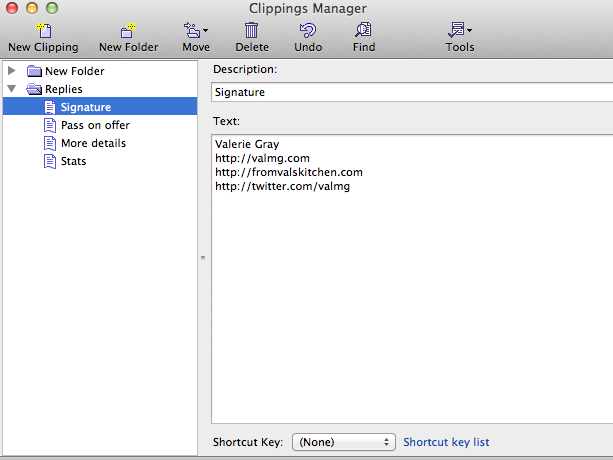
It’s easy to create a Clipping and there are a different ways you can do it. One method of creating a Clipping is by clicking “new clipping” in the clippings manager. Another method is by copying the text you want to use and dragging it onto the clippings manager. Yet another method is to highlight the copy you want and right-click.
Using a saved Clipping is easy, you can do it in as little as two clicks. When you right-click and go to the Clippings menu and choose the specific Clipping you want it will be inserted into your email. Or, if you prefer to use keyboard shortcuts, you can do that too! To insert a clipping using the keyboard, press CTRL+ALT+V (Command+Option+V on the Mac), then the shortcut key.
Once you are using Clippings you can even organize your replies into folders in the clippings manager, as well as give them specific instructions and assign specific hot keys. You can have as many Clippings as you like stored in the clippings manager. I do recommend naming each one so that you know right away which one it is you want to use. If not you can easily see what’s in a clipping by clicking on it once.
Clippings is a great tool for Thunderbird and Firefox users that saves a lot of time and reduces the need for typing the same things over and over again. I totally love it and recommend it highly.

I’ve used gmail accounts, but never their interface – always using Outlook instead. I have to admit though, that is a pretty nifty feature!
This sounds like a really helpful tool! my favorite email tool would definitely have to be the sort option. Messages get sorted into different folders as they hit my email and I don’t have to search. Just go to the appropriate folder. (although it’s not flawless)
Cut and paste…..
These are some great tips. I must be the only person in the world who doesn’t use gmail. I have an account but I just use my other email accounts.
I have never heard of clipping before. This app would make my life so much easier.
I have never heard of that before. I will have to look into that. Thanks for sharing